Eduroam
During your time at Chalmers you will have access to something called Eduroam. It is a computer network used by universities and schools across the world. Here we will walk you through how to set it up on your computer
{{ begin .windows }}
{{ .macos .linux }} Windows
On Windows it is easy to connect to Eduroam. Follow these steps:
- Open your network menu.
- Click on
eduroamand thenConnect. - Enter
<cid>@chalmers.seas the username and then your CID password as the password. - Click
Connect.
{{ end }}
{{ begin .macos }}
{{ .windows .linux }} MacOS
On MacOS there are two methods, the first one is simpler but we believe it's a newer method so if it doesn't work try the other one.
Approach 1
- In the wi-fi dropdown from the menu bar click on
eduroam. - Sign in using
<cid>@chalmers.seas the username and then your CID password as the password. Click onOK. - You will be asked to verify a certificate, click on continue. If prompted to put in your password or confirm with your fingerprint do that.
Approach 2
- Go to Eduroams homepage.
- Click on
Click here to download your eduroam® installer. - In the menu that opens, click on
Chalmers University of Technology. If you don't see it you can use the search bar at the bottom. - Click on
eduroam®. - Click on
Continue. - A profile will have been downloaded. Double click on it in finder, or click on it in your browsers downloads manager / the MacOS downloads folder on the dock.
- You will get a pop-up saying the profile has been downloaded, click
OK. - Open System Settings, at the top under your account name you will see a
button titled
Profile Downloaded, click here or navigate to it throughGeneral/Device Management - Double click on the profile titled
eduroam®. Click onInstall. - Put in your CID in the form
<cid>@chalmers.seand your password for your CID. You will get another pop up requiring you to put in your computers account password. - Now you will be able to connect to Eduroam.
{{ end }}
{{ begin .linux }}
{{ .windows .macos }} Linux
On Linux, there are two different approaches you can use to connect to Eduroam. The first approach should work on most distros and environments, but if not, try the second version.
Approach 1
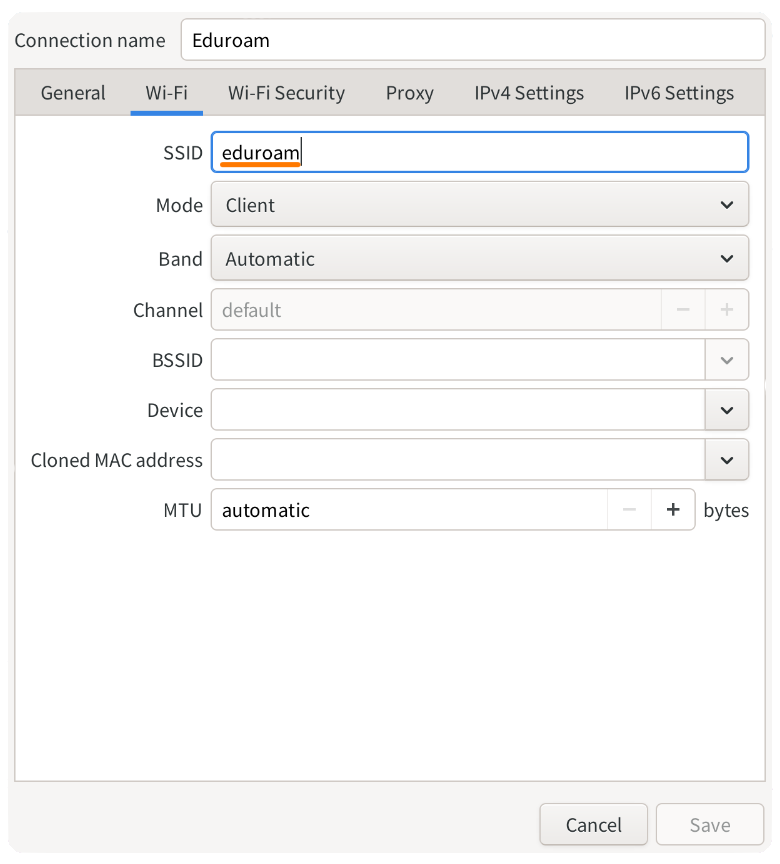
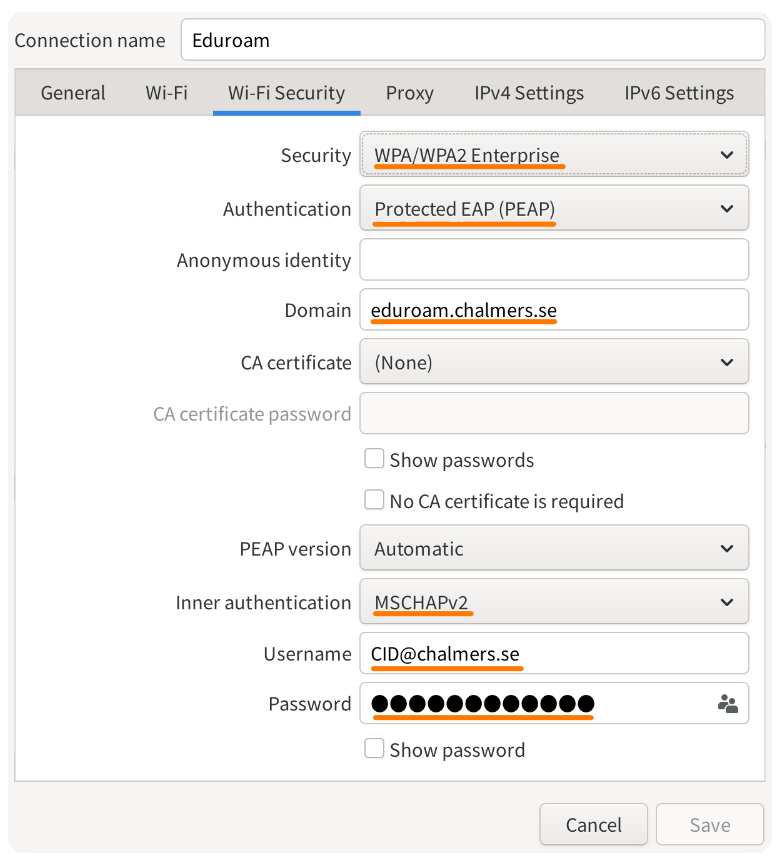
In you networking settings, create a new Wi-Fi network. Fill in the information according to the pictures below. Pay extra attention the highlighted options. You must replace the email address to match your own CID and the password to match the one for your Chalmers email.
Approach 2
- Go to Eduroams homepage.
- Click on
Click here to download your eduroam® installer. - In the menu that opens, click on
Chalmers University of Technology. If you don't see it you can use the search bar at the bottom. - Click on the blue
eduroam®button and then onContinueto download the setup script.
Now that you have the script, we will need to install some programs that it depends on in order to run. If you want to look for them yourself, the packages are python3, python3-cryptography, and python3-dbus. Below we provide commands that will install the packages for a few common distros. Open a terminal and run the command for your distro. You might be prompted to enter your user password when running the command.
Ubuntu, Mint, Debian
sudo apt update && sudo apt upgrade && sudo apt install python3 python3-cryptography python3-dbus
Fedora
dnf upgrade && sudo dnf install python3 python3-cryptography python3-dbus
Arch, Manjaro, Artix
sudo pacman -Syu && sudo pacman -S python python-dbus python-cryptography
With the dependencies installed, we can continue with setting up Eduroam.
- Run
~/Downloads/eduroam-linux-CUoT-Eduroam.py --gui ttyto start the setup. - Press !kbd[Enter].
- Enter
<cid>@chalmers.seas your userid, where you replace<cid>with you own CID. Press !kbd[Enter]. - Enter the password you set for your CID followed by pressing !kbd[Enter]. Note that you will not see your password as you enter it.
- Enter your password followed by pressing !kbd[Enter] again.
If you entered all of your details correctly, you should now be able to connect to Eduroam.
{{ end }}